Install the Android app
Download the Scrap Exchange app, allow the install, check the file is genuine and keep it up to date.
The Scrap Exchange Android app isn't in the Play Store. You download it from our official download site and install it yourself. You only do this once: after that, the app updates itself.
Before you start
- A phone with Android 7.0 or newer.
- Some free space for the download.
- An internet connection. Wi-Fi is best, because you download the whole app.
Install the app
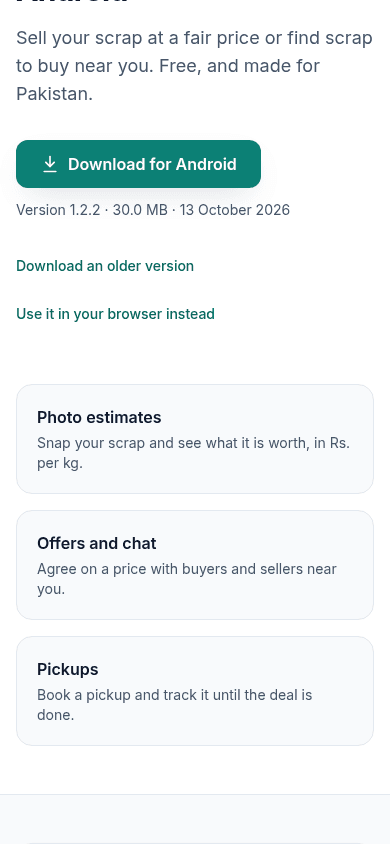
- On your phone, open downloads.scrapex.ubaidbinwaris.com (opens in a new tab) in your browser.
- Tap Download for Android. The file ends in
.apk. - When the download finishes, open it from your notifications or from the Downloads folder.
- The first time, Android asks if your browser may install apps. Tap Settings, turn on Allow from this source, then go back.
- Tap Install. When it is done, tap Open.
You can now create an account or sign in.
Check that the file is genuine (optional)
Every build on the download site shows a SHA-256 fingerprint: a long code of letters and numbers. If the fingerprint of the file you downloaded is exactly the same, the file is the one we published and nobody changed it on the way.
- On Windows, open Command Prompt in the folder with the file and run
certutil -hashfilefollowed by the file name andSHA256. - On Mac or Linux, open Terminal and run
shasum -a 256followed by the file name. - On a phone, a file manager or a hash checker app can show the SHA-256 of a file.
Compare the result with the fingerprint on the download site. If they are different, delete the file and download it again.
Keeping the app up to date
The app checks for a new version when you open it (at most every few hours) and shows Update available when there is one. You can also check by hand: open Account, then tap App updates at the bottom. See How the app updates itself.
Older versions and the beta
- Older versions: if a new version gives you trouble, every earlier build is on the download site under Download an older version. See Install an older version.
- Beta: when there is a beta that is newer than the stable app, the download site shows it with Download the beta. It gets new features first and may have small problems. See The beta.
If it doesn't install
See Troubleshooting: the app won't install.