Devices and signing out
See every phone and browser signed in, sign out one of them, or sign out everywhere.
See every phone and browser that is signed in to your account. If you lost your phone, or signed in on someone else's computer, sign it out from here.
Works in:Android appWeb app
See your devices
- Web app: open Settings, then Account status and devices. Look under Signed in on.
- Android app: open Account, then Account status. Look under Signed in on.
Each device shows:
- its name, for example "Chrome on Windows" or your phone's model;
- whether it is the Phone app, the Web app, or the Admin website (staff only);
- the app version, for phones;
- when it signed in and when it was last active;
- This browser (or this phone) for the one you are using.
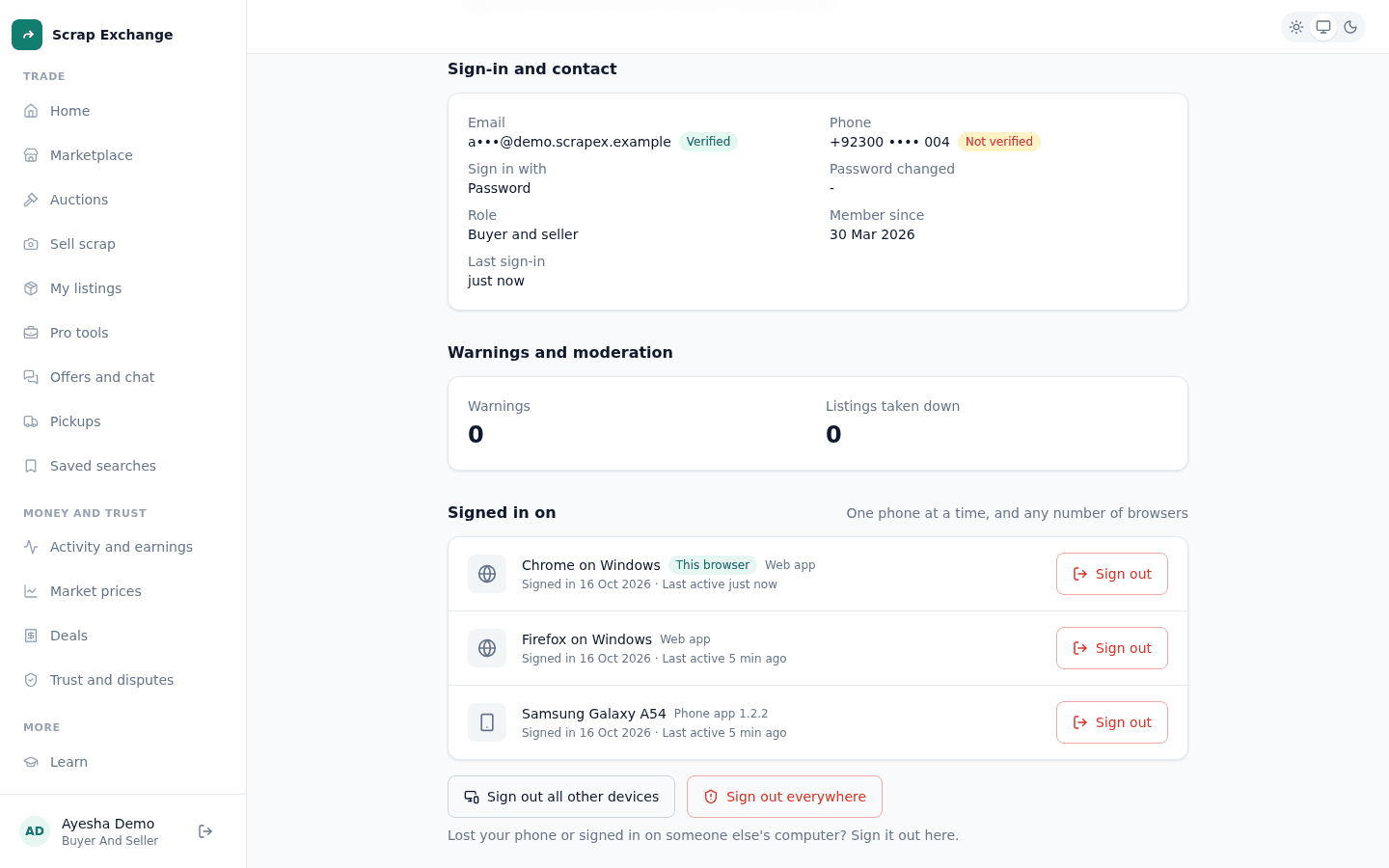
Sign out one device
- Open Account status and devices in the web app.
- Next to the device, select Sign out.
- Confirm. The device needs to sign in again to use your account.
If that device has the web app open, it is signed out straight away and its sign-in page says your session ended.
Sign out all other devices
In the web app, select Sign out all other devices to sign out every phone and browser except the one you are using. You stay signed in here.
Sign out everywhere
Use this if you lost a phone, or you think someone else is using your account.
- Web app: Settings, then Account status and devices, then Sign out everywhere. App: Account, then Account status, then Sign out on every phone.
- Confirm.
Every phone and browser signed in to the account, including the one you are using, needs to sign in again, with a sign-in code. You see "Signed out on every device. Sign in again to carry on."
One phone at a time
Only one phone can be signed in to an account. Signing in on a new phone signs the old one out. Browsers don't count: you can be signed in on any number. See Phone and browsers at the same time.
Sign out of just this browser or phone
- Web app: Sign out at the bottom of the menu, or Sign out of this browser in Settings. Your phone and other browsers stay signed in.
- Android app: Account, then Sign out. You need your email and password to sign back in.