Schedule a pickup
Suggest pickup times, accept one, share your number and get a reminder.
When the buyer confirms a deal, a pickup is created. First you agree a time. On the day, the buyer comes to the seller, weighs the scrap and pays.
Works in:Android appWeb app
Open the pickup
- Web app: open Pickups in the menu, or Open the pickup from the offer. Filter by Where I sell or Where I buy.
- Android app: tap Pickups in Quick actions on the Home screen, or open it from the offer. The app calls it the Pickup coordinator.
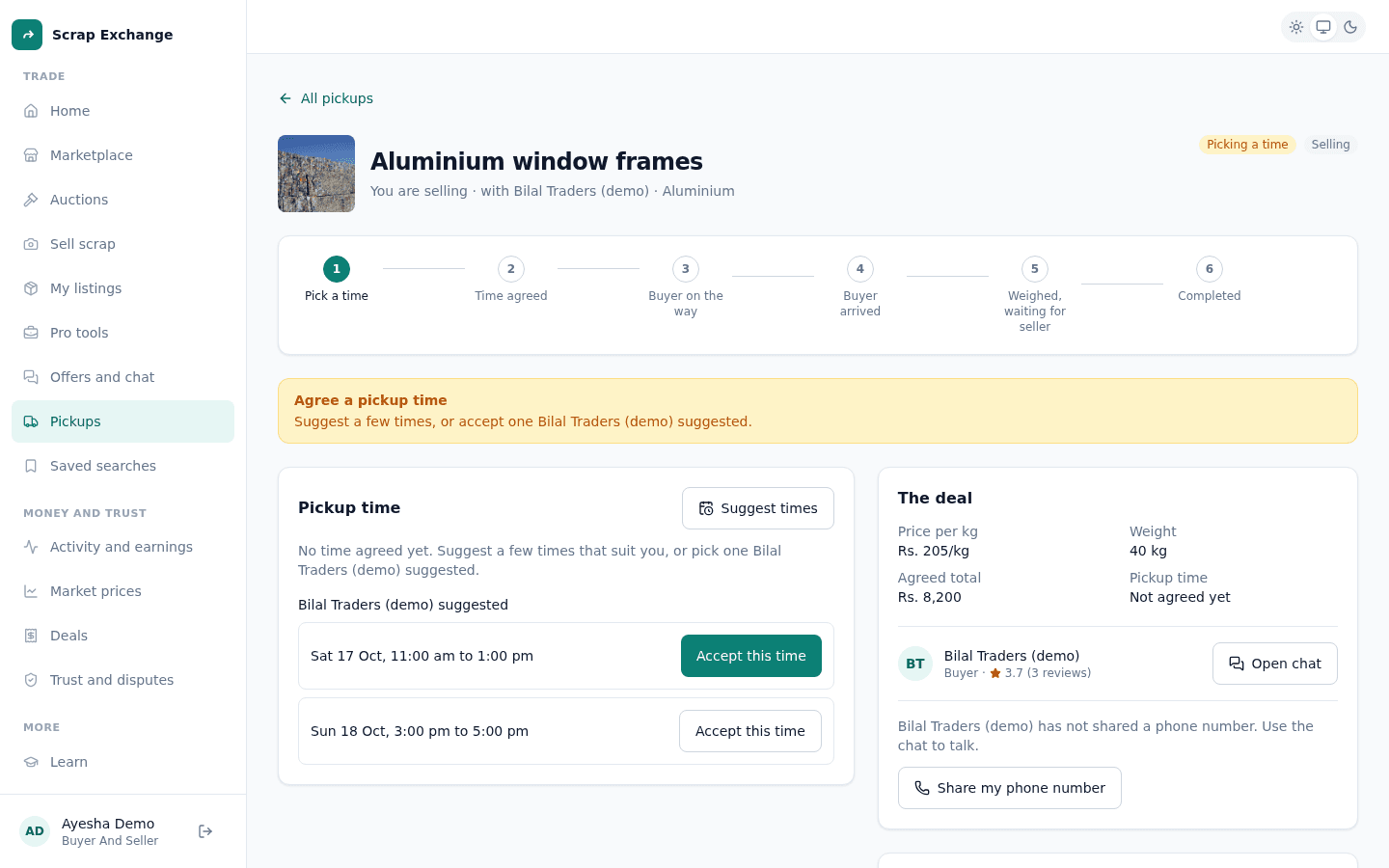
Each pickup shows the listing, who you are dealing with ("You are selling" or "You are buying"), the agreed price per kg and weight, the agreed total, the pickup time and its progress.
Agree a time
- While the pickup says Picking a time, select Suggest times.
- Add up to 5 times that suit you. For each, choose the start and how long the window is (30 minutes to 4 hours). Times must be in the future.
- Select Send times. The other person is told.
- The other person picks one with Accept this time, or suggests their own times.
When a time is accepted, you both see "Pickup time confirmed" and the pickup is Scheduled.
Change the time
Plans change. Select Suggest a new time to send new times. When the other person accepts one, the pickup moves to it (Move to this time).
Share your phone number
Phone numbers stay hidden until each person chooses to share. Select Share my phone number to show your number to the other person for this pickup only. It is hidden again when the pickup ends. Otherwise, talk in the chat.
Reminder
About an hour before the agreed time, you both get a reminder notification.
Payment methods
Sellers can save how they want to be paid (cash, JazzCash, Easypaisa or bank transfer). Buyers see them during the pickup, with the seller's default first. See Payment methods.
Cancel a pickup
If you need to call it off, select Cancel pickup at the bottom of the pickup and give a short reason. Cancelling ends this deal for both of you, and the listing goes back on the market. The other person sees who cancelled and why.
Next step
On the day of the pickup, see On pickup day: tracking, weighing and payment.